
How To: Easily construct your CAML queries with CAML Query Builder

This post is a mere follow-up to my previous minor posts on the subject of SPQuery and SharePoint queries located here.
Basically, this post will provide step-by-step instructions to construct your CAML (Collaborative Application Markup Language) queries using the U2U CALM Query Builder which you can find on the U2U Community Tools page.
Prerequisites
In order to be able to follow along with this step-by-step instructions you’ll need the following:
- U2U CAML Query Builder 2007 or later
- A site containing a Task List with some items - Some items with Status set to Completed
- Some items with Status set to something else than Completed
Let’s get going!
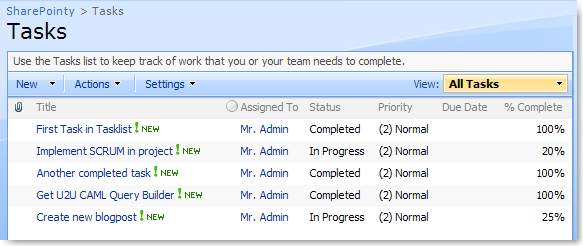
First of all, make sure you’ve got some items in your Task list:
Launch U2U CAML Query Builder
Fill in the URL to your SharePoint site and choose weather you’d like to go in the Object Model-way or using SharePoint Web Services. I chose Connect via Object Model:

Select "Tasks" in the list that you’ll be presented with, and the right-hand side of the application will automatically be filled with the fields availible for that list, which will be the basis for our query:
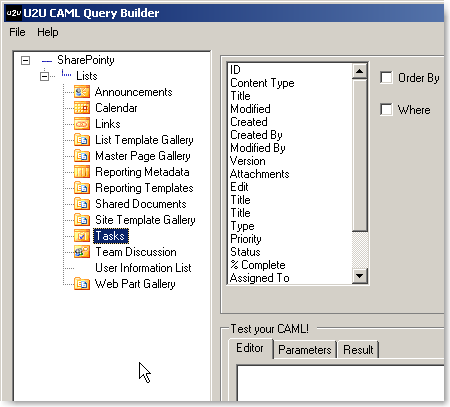
As you can see here, there’s the option to:
- Choose the field – the CAML Query Builder will automatically choose the InternalName
- "Order By" – order the results being returned in any choose order
- "Where" – Specify which results should be part of the returning resultset, this is the most vital tag if you ask me!
- "Test Your CAML!"
- "Editor": Enter any CAML here and hit the "Test" button in order to test the entered query directly against your List
- "Parameters": Retrieves any parameters
- "Result": The returning result of the query you test
(tip: Always test your query before applying it to your code, no matter how simple it may be)
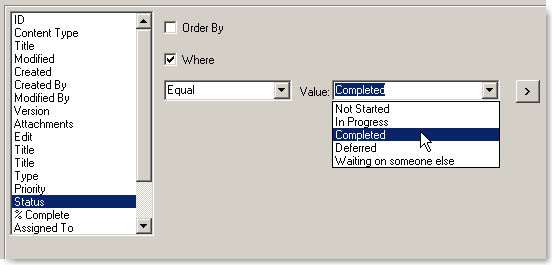
Select the "Status" field
Check "Where" and choose "Equal" and choose the value "Completed" like this:
Hit the little arrow pointing to the right, and the query will be automatically created for you and you’ll get the CAML in the bottom-window like this:
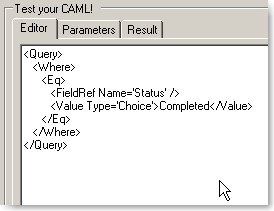
IMPORTANT: When you construct your query in SharePoint later on, REMOVE the tags. See this post on the subject.
Now that you’ve created the CAML you want, hit the "Test" button to the right and make sure you get the desired result!
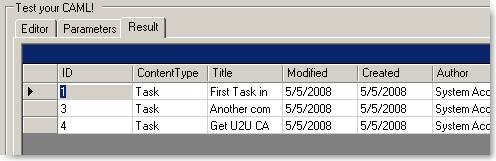
Note: You can check the column called Status and make sure that all rows returned states "Completed"
Now we’ve got our CAML Query ready to be implemented in our SharePoint code. Since we didn’t make anything complex or advanced it’ll be quite easy to implement this query, as I will show you now.
Prepare a Console Application for SharePoint Development
I will for simplicity create a Console Application to retrieve the desired SPListItem objects based on our SharePoint CAML query
Create a new Console Application
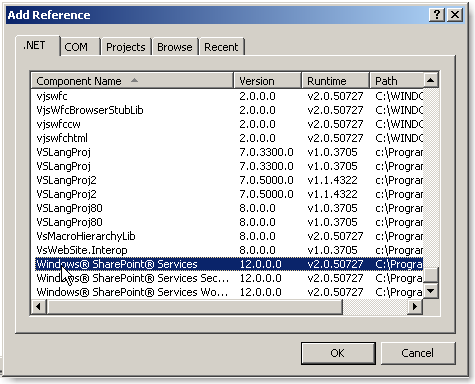
Add a reference to Microsoft.SharePoint.dll (Windows SharePoint Services) in order to be able to access the SharePoint object model
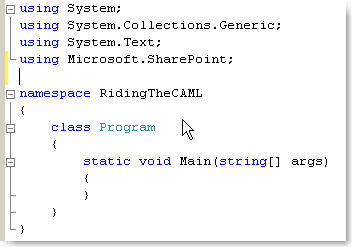
Add the following standard using-directive (Microsoft.SharePoint) in order to be able to use the classes in the SharePoint namespace:
Now we’re ready to roll – hang on to your camel
Implementing a normal list loop, without queries (not a good approach)
The following example is what it basically looks like at many implementations. A straight through loop that’ll basically loop EVERY item in the list and check EVERY object if it’s matching what we want – this is not a valid approach if you’ve got a couple of thousand (or even just a couple of hundred) items in the list. It’ll take way too long.
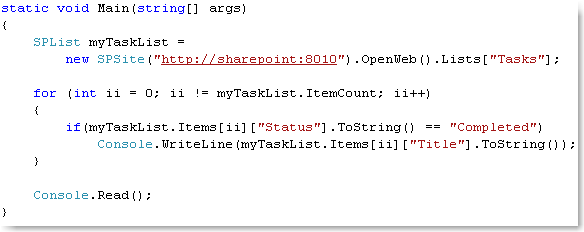
The output is correct, but the time to walk through each item may even cause a timeout if you’ve got many thousand items in the list.
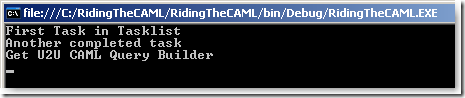
Implementing SharePoint (CAML) Queries using the SPQuery object (very good approach)
This will demonstrate how you achieve exactly the same result as previously demonstrated, but with less resource-hogging and much quicker.
Direct advantages:
- Ordering, you can specify exactly in what order, sorted on any column that you want your resultset to be.
- Filter out unwanted items (using the Where-tag you can simply choose ONLY the items you want returned)
- SharePoint will dig right into the list and pick out the correct objects much faster than the previous example
Take a look at the following code, which will implement our previously created query:
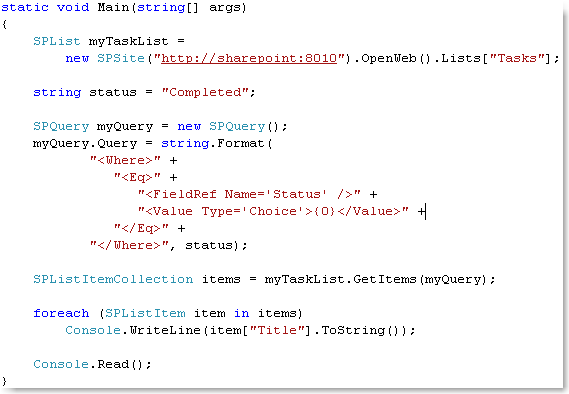
IMPORTANT: As you can see in the code above, I didn’t use the and tags provided by the U2U CAML Query Builder. If you do, your query will not work ;)
Conclusion
You may not acknowledge any performance boost if you’ve got up to 100 items in your list, but when the list grows, you’ll notice a huge difference immediately.
I did a test on my Forum Web Part where I had about 2500 posts (items in a list) and retrieved them using the first approach mentioned here (simply looping all items and using if-statements on each of them) – it resulted in timeouts all the time. When the page loaded, it took more than a minute per request, which isn’t appreciated by anyone ;)
When I made the comparsion with my SPQuery implementation to directly pick out the items I wanted, it resulted in a 1 second loadtime instead of more than a minute. This speaks a lot about how good queries are.
Yeah okay.. So what should I do now?
You should most definately refactor all your code to use Queries if you havn’t already!
Most people already do use this approach, but since I keep seeing implementations that doesn’t, I just thought I’d write this little piece up.
Hope someone can find it useful.





Recent comments