
SP 2010: Getting started with Business Connectivity Services (BCS) in SharePoint 2010

This is the first post in a small SharePoint BCS series.
- SP 2010: Getting started with the Business Connectivity Services (this post)
- SP 2010: Programmatically work with External Lists (BCS) in SharePoint 2010
- SP 2010: Programmatically work with External Lists (BCS) using the Client Object Model
BCS in SharePoint 2010 is an excellent refinement of the Business Data Catalog from MOSS 2007. With BCS – or Business Connectivity Services – you get the possibility to connect external data and work with it from SharePoint.
In this article, I will not cover the basics of what BCS is all about (MSDN/TechNet does this very well) – I will rather give you a walkthrough of how you can setup a BCS connection to an external database, and then work with this information directly from a SharePoint list – without the user actually knowing anything about the connection to the database.
BCS Poster: Business Connectivity Services Poster
BCS Team Blog: http://blogs.msdn.com/bcs/
A sample SQL database
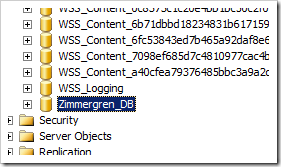
I’ll just show you how my sample database is set up – simply create a new database in your SQL Server and have it filled with some example data. In my case, this is the data in my SQL database, called Zimmergren_DB:
In this sample database, I’ve added a table called ProductList which, in theory will represent some products in this database, like this:

I’m filling the database with some sample data, so we will be familiar with this data when we later watch this information from SharePoint:
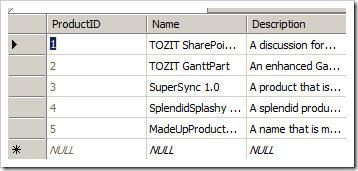
Alright – we have some sample data in our SQL Server. Nothing fancy, just some very simple data. Great, let’s get going with the fun stuff!
Creating an external content type
The most effective and easy way to set up a simple BCS connection is to use SharePoint Designer 2010. You heard me, we can now get up and running with BCS by using SPD instead of modeling complex ADF files and things like that.
To do this, we need to create a new External Content Type!
Here’s how to create our External Content Type and hook it up with our database, step by step:
- Open the site you want to work with using SharePoint Designer 2010
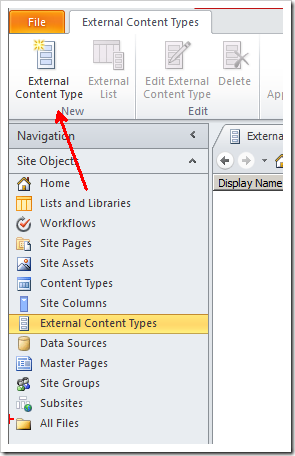
- Select "External Content Types" in the left-hand navigation:
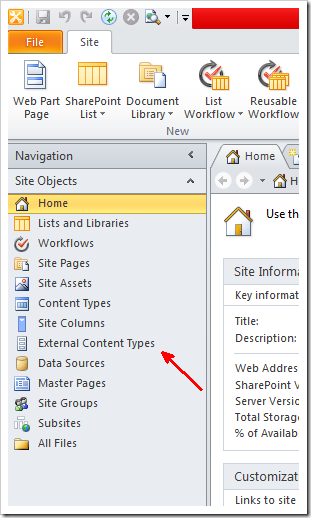
Loading this page might take some time, be patient!
- Click to create a new External Content Type like this:
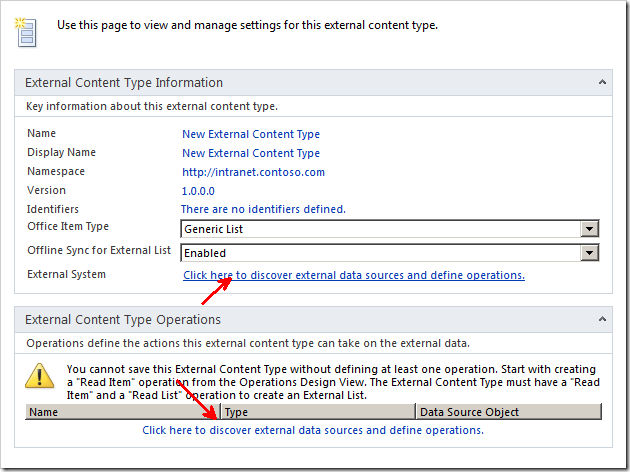
- Click the link that reads: "Click here to discover external data sources and define operations":
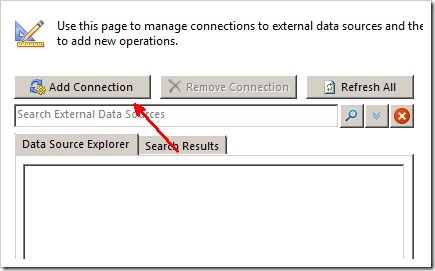
- Click "Add Connection"
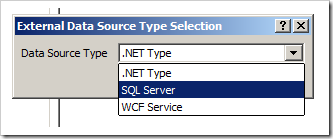
- Select "SQL Server" as your Data Source Type:
- Enter the details about your connection to your SQL Server:

- When the connection is made, your Data Source Explorer will be filled with the database you have specified. Now choose the table you want to work with, and right-click and select "Create All Operations":
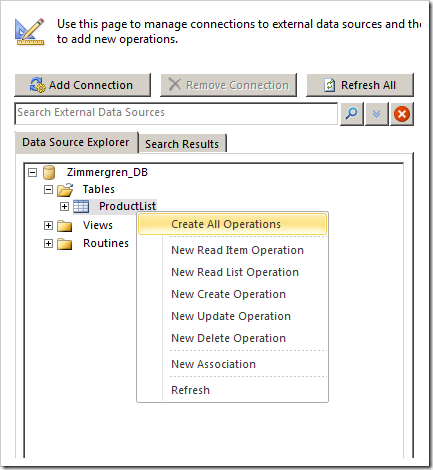
You’ll be presented with a wizard-like dialog where you can specify the operations, elements and other properties for your BCS connection.
- Click "Next" to get to the Parameters page
- Select the field that you want to act as an Identifier. In my case I’ve selected my ProductID just to get on with it:
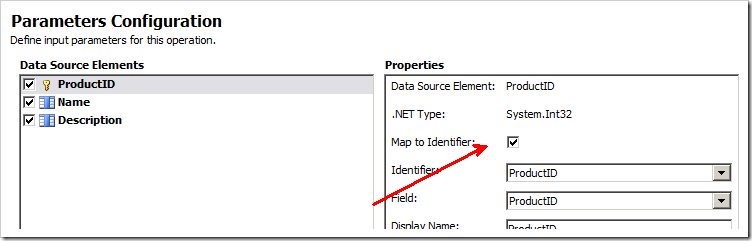
- Click "Finish"
- You’ll be presented with a list of operations that your External Content Type can do, like this:
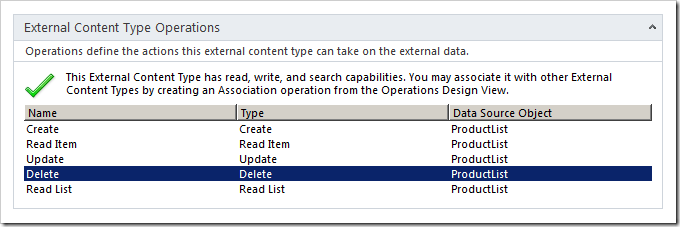
That’s it. A few points, a few clicks – and you’re done. Let’s create an external list (using the Browser to show how simple it is..) and hook up our external content type with it!
Creating an external list
There are a few ways to create an external list in SharePoint 2010. We will create it using the Browser UI to show you how simple it can be.
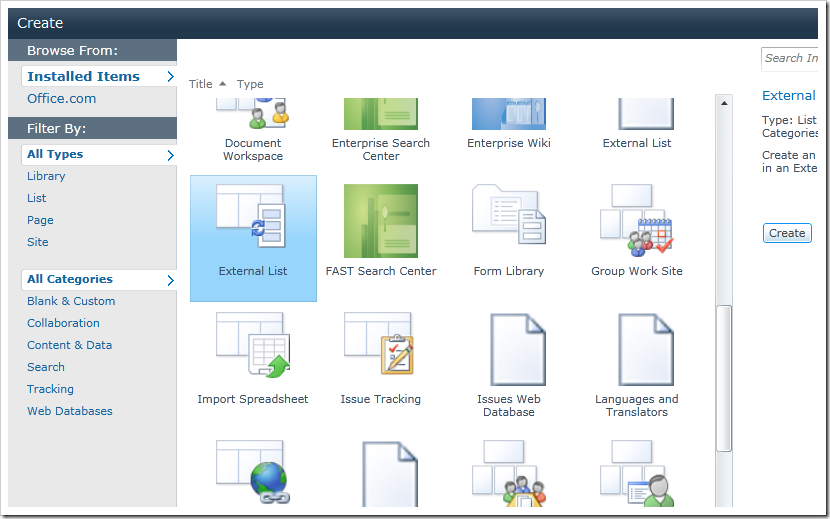
- Open your site and choose Site Actions – More Options…
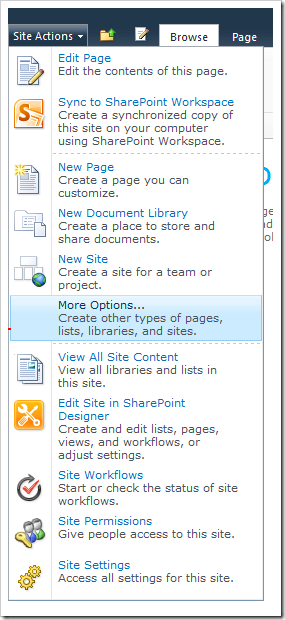
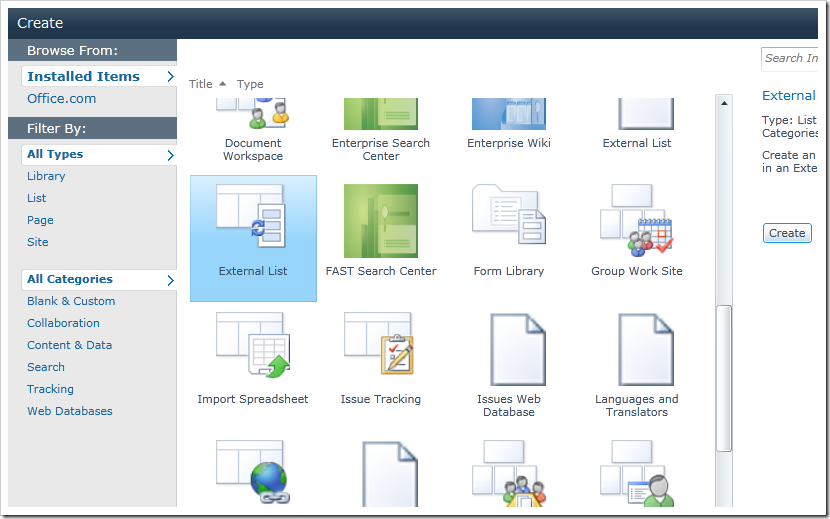
- Select the External List template, and click Create
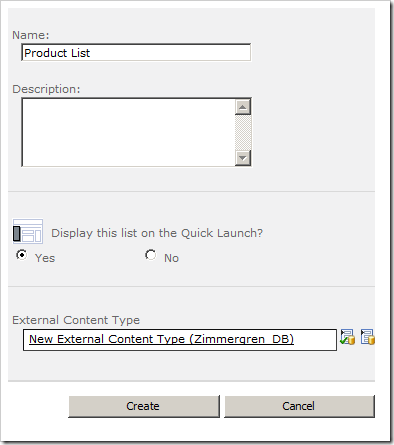
- Enter a name for your list, e.g. Product List
- You’ll see a field in this list called External Content Type, click the browse-button beside it:
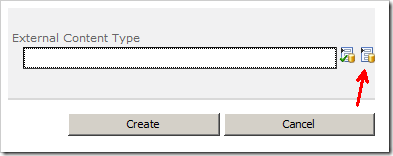
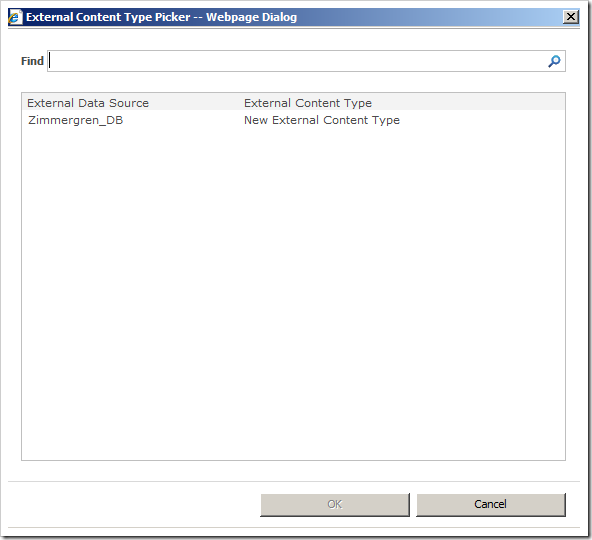
You are now presented with a dialog where you can choose the data source for this list. That means you’ll select the data source you’ve created (mine is called Zimmergren_DB). Then your list will automatically work against the SQL database, but still, have the look and feel of a SharePoint 2010 list.
- Select your data source and click OK:
- Now click the button called Create:
You’re now working with external data from your (what looks to be) regular SharePoint list! This is brilliant!
You now have the ability to create new items, update existing items, delete items and do all your normal CRUD operations (CRUD = Create, Read, Update, Delete) straight from the SharePoint 2010 list.
Proof of concept – Adding a new product
Let’s just for the fun of it add a new product called "Awesome Product 1.0" like the following screenshot:
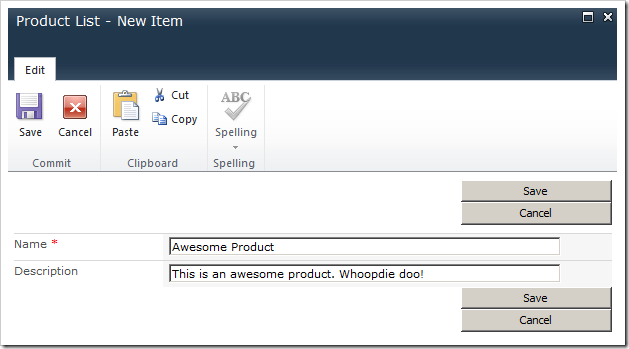
Now go to your SQL Server and see the changes take effect immediately. The data is NOT stored in SharePoint, it’s stored in your SQL Database.
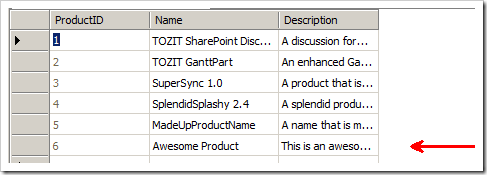
This is what my table now looks like in the SQL Server, after adding a new item in the SharePoint list:
Summary
With a few points, followed by a few clicks – you’ve set up your external data connection. Basically, it’s that simple.
Of course there’s a lot of things to consider when doing these configurations – and you might not want to auto-generate the CRUD-operations but rather create them one by one and specify more fine-grained permissions, etc.
This is merely a sample to show you how easy it is to actually get up and running with the SharePoint 2010 Business Connectivity Services (BCS) and work with external data!
Enjoy





%20in%20SharePoint%202010)
Recent comments