
SP 2010: Uploading files using the Client OM in SharePoint 2010

In this article I will guide your through the process of uploading a document to any chosen document library in SharePoint 2010 through the Client Object Model.
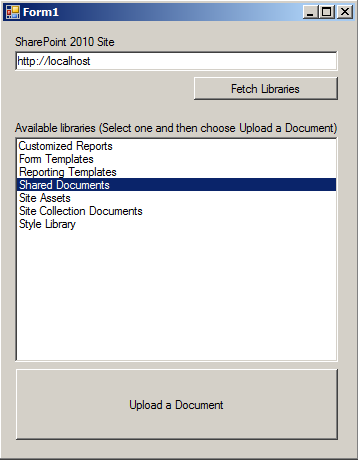
This application has a very simple usage scenario:
- Type in the URL to your site where you want to upload your file
- Choose one of the available Document Libraries
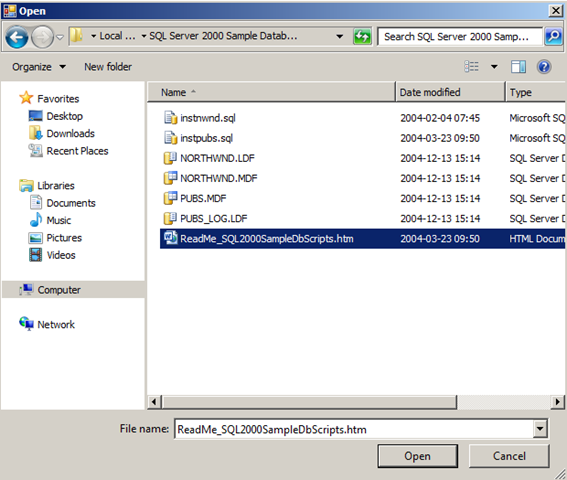
- Click Upload a Document and you’ll get a browse-dialog to choose the file
Example:
Enter a servername and click Fetch Libraries
Select the Document library you want to upload your file to
Browse for a local file on your filesystem[
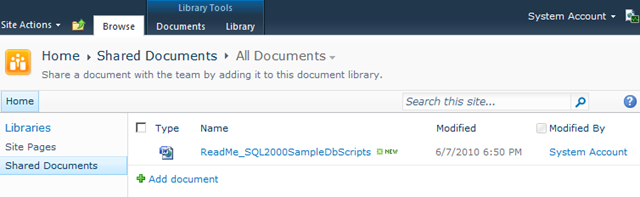
Click the magic button (Upload) and you’ll see your document shoot straight into SharePoint from your client machine(s)[
How to utilize the Client Object Model in SharePoint 2010 to upload files
The most important thing to learn about when it comes to uploading files with the Client OM is to master the FileCreationInformation class that comes with the Client OM.
Take a look at this complete snippet to see how you can upload a file:
private void btnUploadDocument_Click(object sender, EventArgs e)
{
    string library = listBox1.SelectedItem.ToString();

    OpenFileDialog openDialog = newOpenFileDialog();
    openDialog.Multiselect = false;
    if (openDialog.ShowDialog() == DialogResult.OK)
    {
        SP.ClientContext ctx = new SP.ClientContext(tbSite.Text);
        var web = ctx.Web;

        var fciNewFileFromComputer = new SP.FileCreationInformation();
        fciNewFileFromComputer.Content = File.ReadAllBytes(openDialog.FileName);
        fciNewFileFromComputer.Url = Path.GetFileName(openDialog.FileName);

        SP.List docs = web.Lists.GetByTitle(library);
        SP.File uploadedFile = docs.RootFolder.Files.Add(fciNewFileFromComputer);
        ctx.Load(uploadedFile);
        ctx.ExecuteQuery();
        // Tell your user that the file is uploaded. Awesomeness has been done!
        MessageBox.Show(openDialog.FileName + " uploaded to " + library);
    }
}
Things to note here is that I’m currently not changing the authentication for this application. That means it’ll be using your Windows/Domain Credentials.
Learn more about the authentication options here:
https://zimmergren.net/sp-2010-getting-started-with-the-client-object-model-in-sharepoint-2010/
Summary
With this sample application you can easily upload any file to any of your SharePoint 2010 document libraries by first entering the URL to the site, then selecting your library and finally browsing for a file and click OK.
Easily enough, you can change or extend this project the way you want it to work if you’ve got specific requirements to upload files using the Client OM.
References





Recent comments